Showing posts with label Spirowonder. Show all posts
Showing posts with label Spirowonder. Show all posts
Monday, 3 August 2009

Monday, 20 July 2009
Hide & Seek Weekender 31st July - 2nd August 2009 at the Southbank Centre

"Head down to the Southbank Centre for the Hide&Seek Weekender, two and a half days of free social and pervasive games. Betray, argue and deduce with an evening of social games on Friday night. Film, follow, decipher, hide and hunt all day Saturday. And turn up on Sunday for a day of family-friendly games. We'll be filling the South Bank with argumentative bank robbers, Twittering spies, teleporting enemies, adventurous soft toys, player-generated music, and much more, so do come and play! Visit http://www.hideandseekfest.co.uk/2009programme to read about all the different games."
Spirowonder! Sunday 2nd August 11 - 5

Use the concrete pavements as your canvas around the Southbank Centre to create hypnotic patterns, your tools an ever-so-large spirograph, chalk and your imagination. Draw your own individual pattern or add to a pattern already drawn; see this explode and grow through the day. You can borrow a spirograph individually, but it's more fun and easier if you draw collaboratively.
Monday, 25 May 2009

Sunday, 17 May 2009
Dulwich Fesitval - Open House weekend
Make It Local - an exhbition by second year 3D design students as part of Dulwhich Festival Artist Open House weekends
I spirographed a little on the patio by myself, collaboratly with some children (picture below) and others carried on with the spirograph/drew some spirograph inspired patterns to.


I exhibited my Street Drawings short film and I put the spirograph outside on the patio for people to pick up.
I spirographed a little on the patio by myself, collaboratly with some children (picture below) and others carried on with the spirograph/drew some spirograph inspired patterns to.


Friday, 30 January 2009
first test of Spirograph

after chatting and playing with it I think this is what I need to change:
- the angle of the cogs - more rounded and equal top and bottom
- place the outer circles further inwards as the holes towards the center work much better due to the pressure being applied...
design a few different ones and cut them at a smaller scale in card, (this one was in 5mm plywood) to test which works best and to try layering some together as I think this will help to
what other medium to draw with? - smaller chalk sticks/ graphite
smaller holes that slot in to the existing ones? so same spirograph can be used for multiple materials to draw with
Thursday, 29 January 2009
Redrawring the Spirograph in Illustrator
After getting to uni at for 8:30!!!!! as Neil had kindly said he would squeeze me on to the lazer cutter.I found that my VectorWorks file just wouldn’t work! –wouldn’t convert, save or open as an Illustrator file.
Mike suggested a DXF file this seemed to work but still wouldn't open on another the computer
So I embarked on redrawing it in Illustrator which I don’t really know how to use –asked one of the technicians – is there a way of putting the shape on a line and bending it around a circle? no but suggested this way
Effect > Distort and Transform > Transform
 Which allows you to select a shape, chose the number of copies, which point to rotate from and chose the degree of rotation. Also Scale - which will rotate the shape into a spiral and Move - spacing etc. But after fiddling about with this for a while I couldn't get it to work.
so the technician Kay showed me this helpful website: www.illustrator-brushes.com - which has a handful of tutorials for Illustrator brushes (also sister website for Photoshop brushes)
Select rotation tool (if you hold shift you get set angles) (slect object press enter brings up rotate panel so you can enter in angle).
What I did:
- drew a circle found center (using co-ordinatates of page) and marked with horizontal and verticle line
- placed the tooth so that end points touched the edge of the circle(which I had also made largr then my orginal VectorWorks Scale up)
- by moving the rotation point away from the center of the tooth to center of the circle
- press Alt key, trial and test to find right angle to join the end points of the tooth, select copy
- shortcut key to duplicate copyied object Apple and D
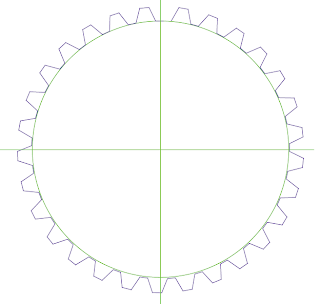
This first attempt of the middle circle didn't join up, I think that this may of bean becuase of how iI orginally placed the tooth on the circle and then copied it
Outer circle:
Inner Cirlce:
Middle Circle:
Smaller Circle:
Placing holes for circle
 circle the average diameter of my chunky chalk/crayon 3 cm
draw sprial and placed circles on spiral, then deleted center lines and spiral
finished Illustrator drawring

size: 70 cm by 70cm
Outer circle: d rotation: 5
Inner circle: d rotation: 6.8
Middle circle:
Smaller middle circle:
Mike suggested a DXF file this seemed to work but still wouldn't open on another the computer
So I embarked on redrawing it in Illustrator which I don’t really know how to use –asked one of the technicians – is there a way of putting the shape on a line and bending it around a circle? no but suggested this way
Effect > Distort and Transform > Transform
 Which allows you to select a shape, chose the number of copies, which point to rotate from and chose the degree of rotation. Also Scale - which will rotate the shape into a spiral and Move - spacing etc. But after fiddling about with this for a while I couldn't get it to work.
so the technician Kay showed me this helpful website: www.illustrator-brushes.com - which has a handful of tutorials for Illustrator brushes (also sister website for Photoshop brushes)
Select rotation tool (if you hold shift you get set angles) (slect object press enter brings up rotate panel so you can enter in angle).
What I did:
- drew a circle found center (using co-ordinatates of page) and marked with horizontal and verticle line
- placed the tooth so that end points touched the edge of the circle(which I had also made largr then my orginal VectorWorks Scale up)
- by moving the rotation point away from the center of the tooth to center of the circle
- press Alt key, trial and test to find right angle to join the end points of the tooth, select copy
- shortcut key to duplicate copyied object Apple and D

This first attempt of the middle circle didn't join up, I think that this may of bean becuase of how iI orginally placed the tooth on the circle and then copied it
Outer circle:
Inner Cirlce:
Middle Circle:
Smaller Circle:
Placing holes for circle
 circle the average diameter of my chunky chalk/crayon 3 cm
draw sprial and placed circles on spiral, then deleted center lines and spiral
finished Illustrator drawring

size: 70 cm by 70cm
Outer circle: d rotation: 5
Inner circle: d rotation: 6.8
Middle circle:
Smaller middle circle:
Site Specific Spirograph?
I was thinking about this one little area near Lidils, which I always find interesting as there are so many built in circles - the double mine roundabout and with in the little park:


Friday, 23 January 2009
Chalk - Crayon?

The colours and so scrumptious and fresh! mmm edible! but i was expecting chalk not crayon!

LESSON LEARNT
- always ask for a sample before forking out the cash!
Subscribe to:
Posts (Atom)

